

Giving ContactWise admin access
Invite ContactWise to your Meta business portfolio with full access, so our team can complete onboarding for you. Takes about 3 minutes.
Most customers let ContactWise do the setup. You invite our team to your Meta business portfolio as an admin, and we connect your WhatsApp Business account, set up templates and fix account issues without asking for your passwords. You stay the owner, and you can remove our access at any time.
You'll be asked for this email address in step 3
blakshmikanth@gmail.comBefore you start
- Use a laptop or computer. The settings are easiest to find in a desktop browser, not the phone app.
- You must be an admin. Only someone with Full access to your business portfolio can invite people.
- You stay in control. You can remove our access at any time.
Prefer not to share admin access? Your admin can join the guided sign-up with us instead.
Step by step
Open Meta Business Suite and go to Settings
Go to business.facebook.com and log in with your Facebook account.
- Check that your business name is shown at the top left. If not, click the arrow and choose your business.
- Click Settings at the bottom of the left menu.
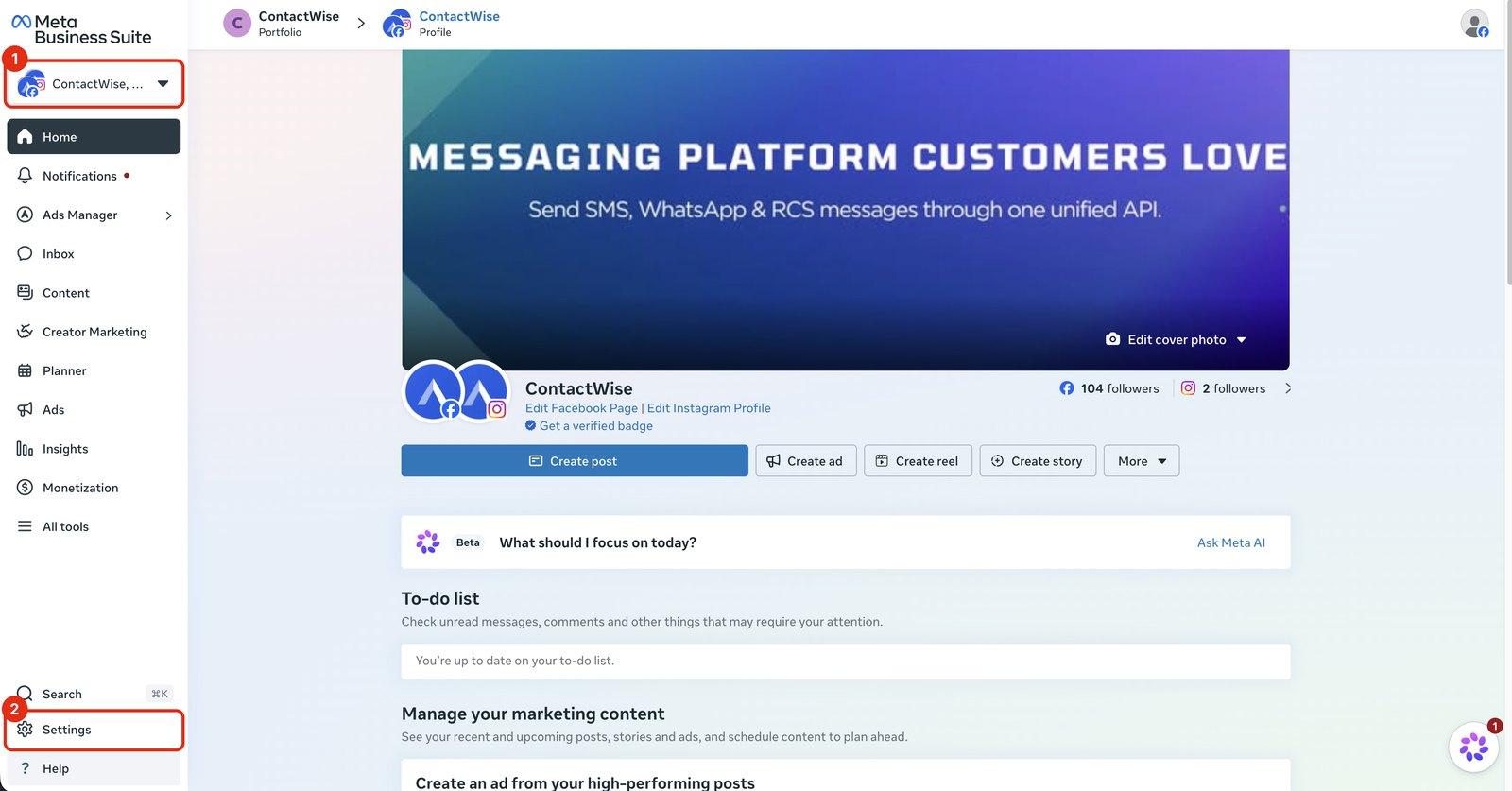
Another way in: open your business Page on Facebook and click Meta Business Suite in the left menu.
Click Invite people
You'll see the Business settings overview page. Click the blue Invite people button at the top right.
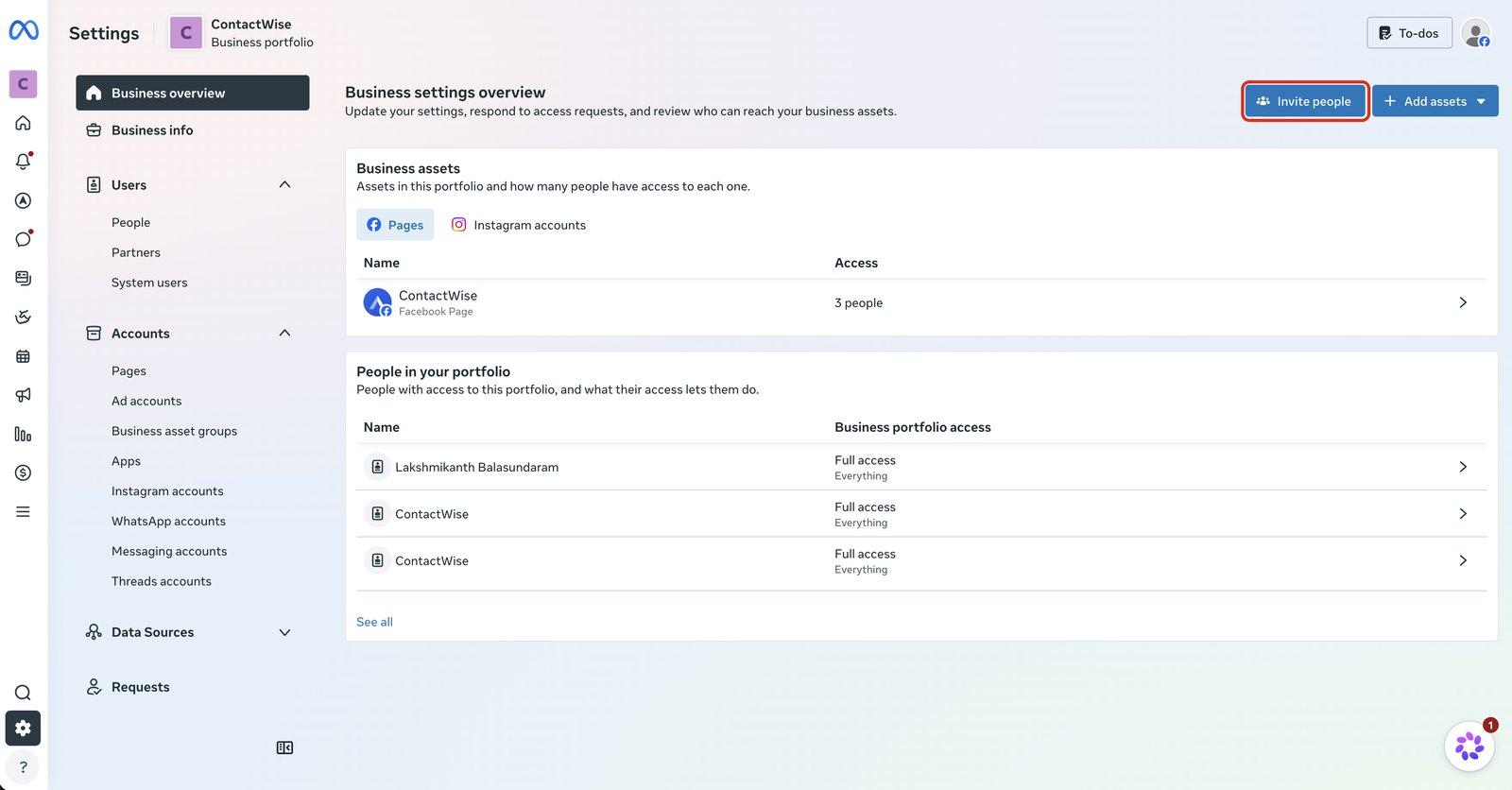
Can't see Invite people?
You probably don't have Full access to this business. Ask the person who created your business portfolio to follow this guide instead.
Enter our email address
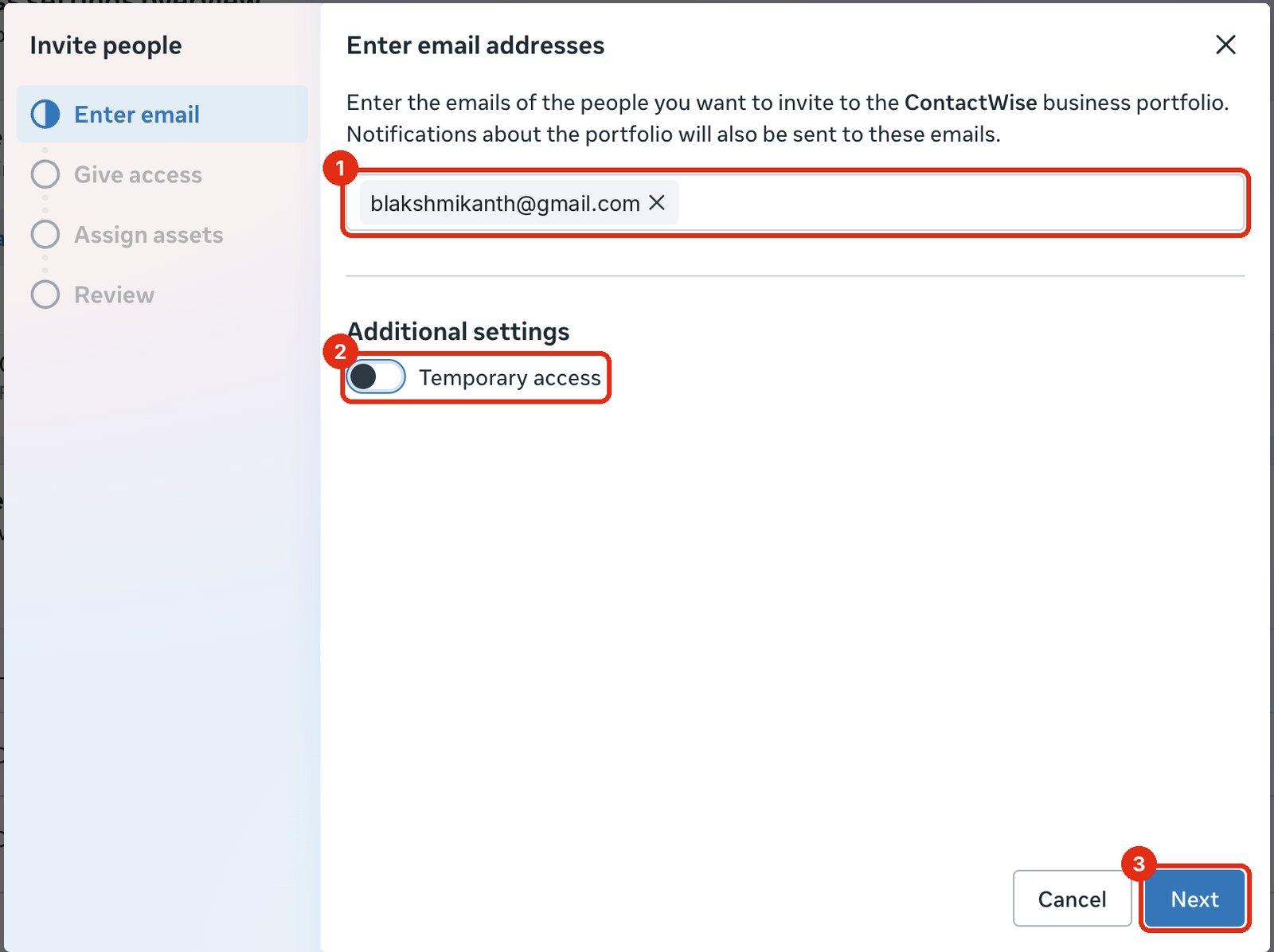
- Type or paste
blakshmikanth@gmail.comand press Enter. - Leave Temporary access switched off.
- Click Next.
Give full access
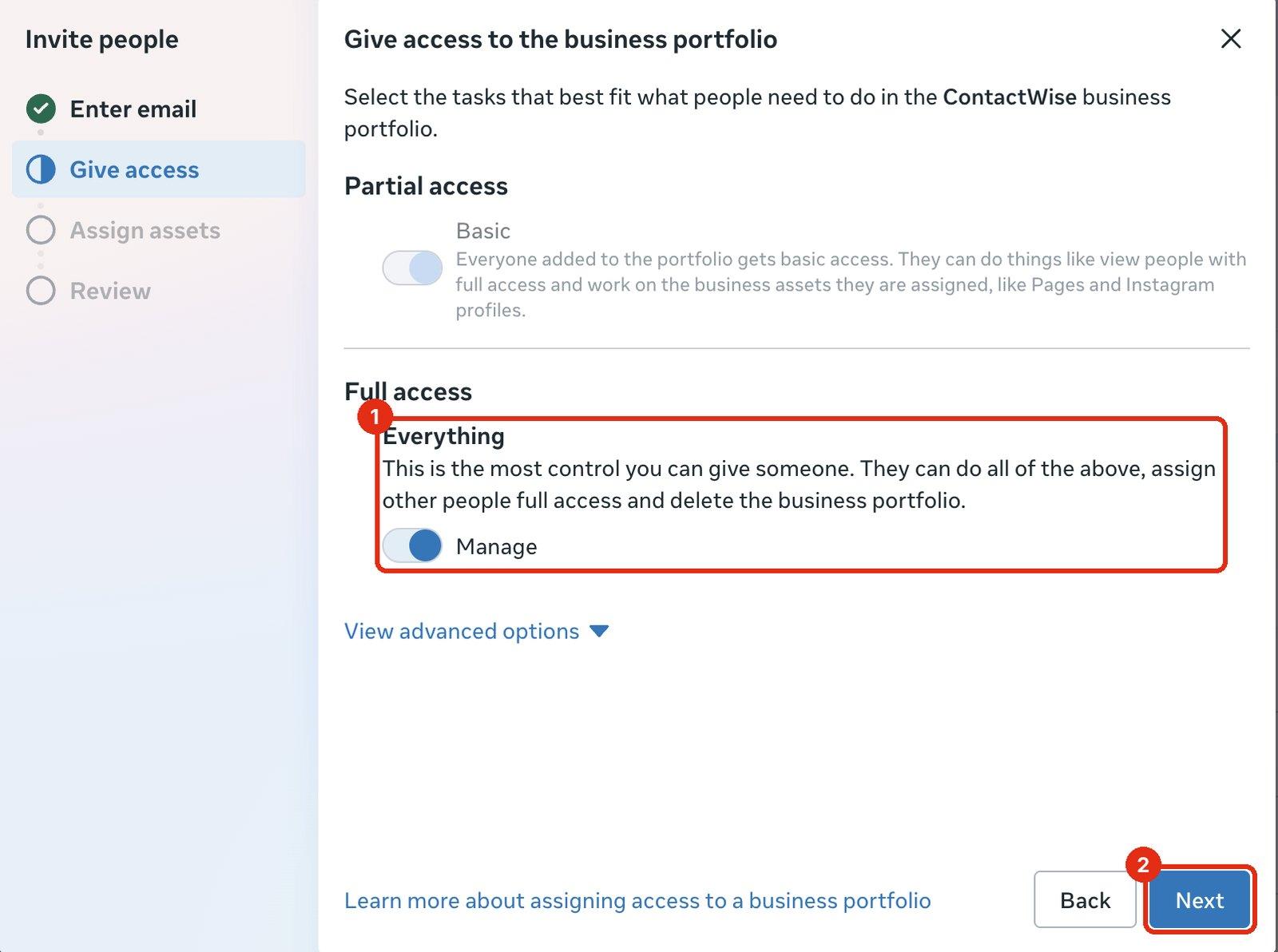
- Under Full access, turn on the Manage switch next to Everything. It turns blue when it's on.
- Click Next.
Basic is already on and greyed out. That's normal, so leave it.
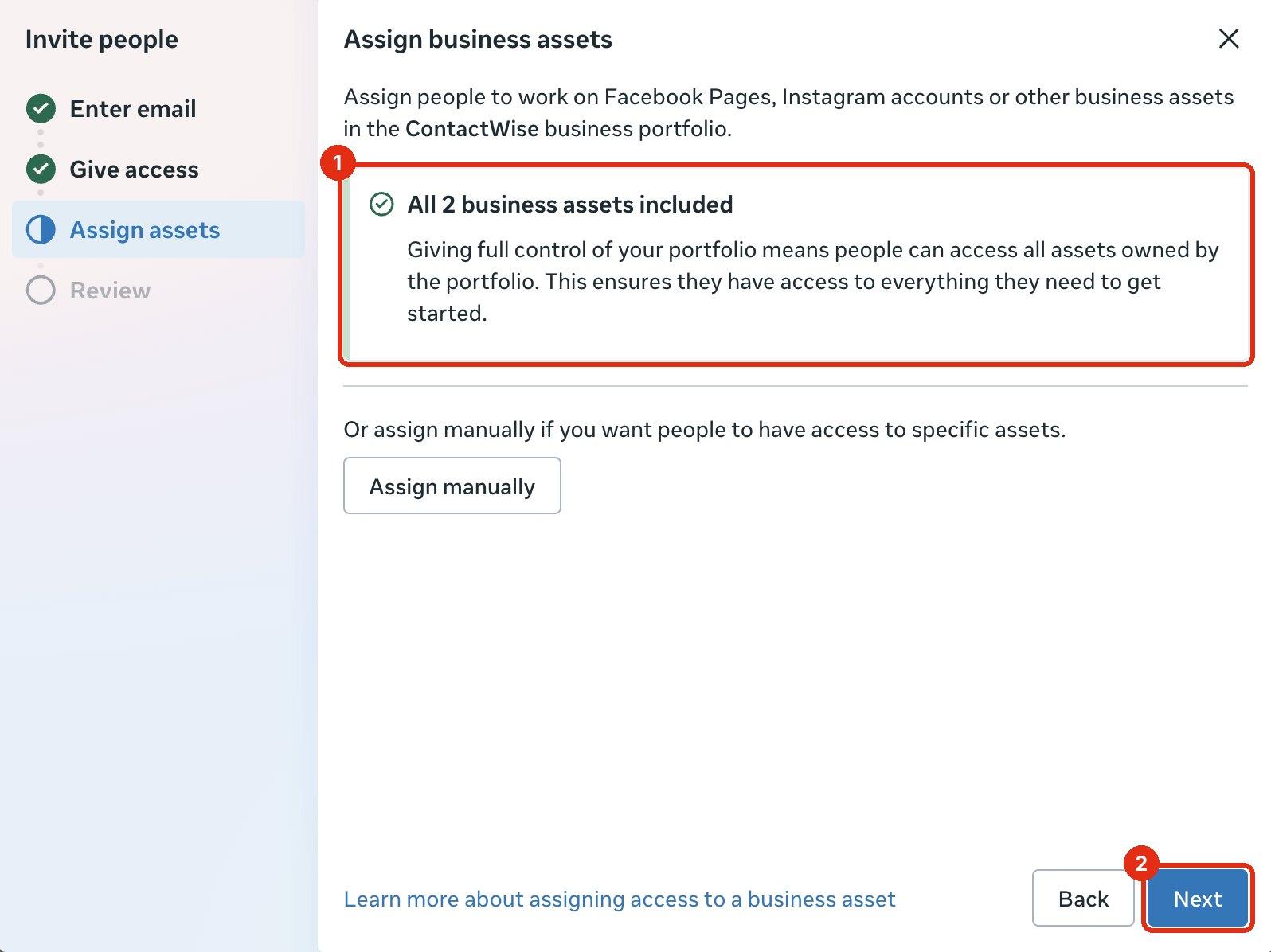
Keep all business assets included
- You'll see All business assets included. Your Facebook Page, Instagram, WhatsApp and other accounts are added automatically. The number may be different for your business.
- Click Next. You don't need to click Assign manually.
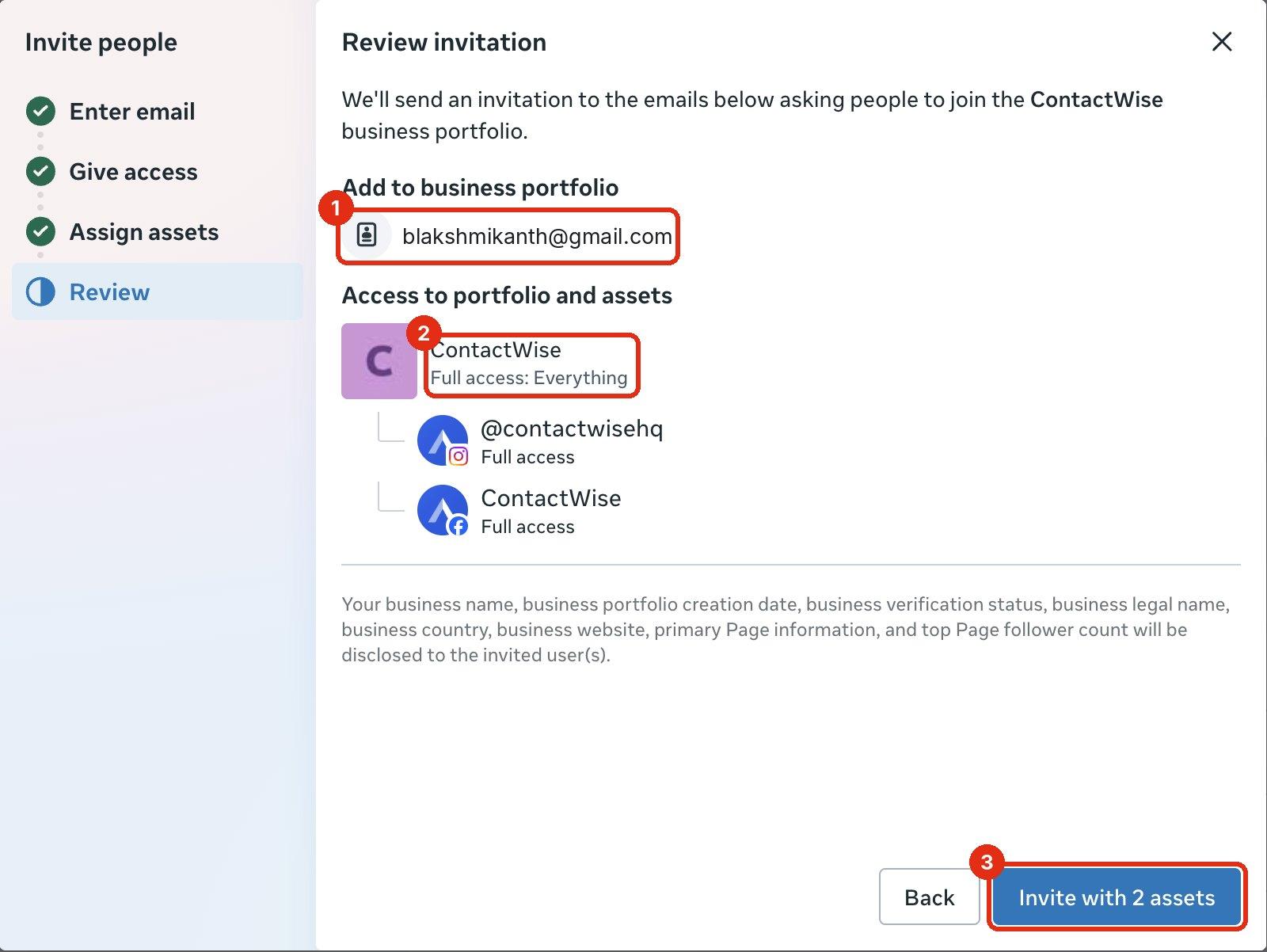
Check the details and send the invitation
- Check the email is
blakshmikanth@gmail.com. - Check your business shows Full access: Everything.
- Click Invite with … assets. The number on the button depends on your business.
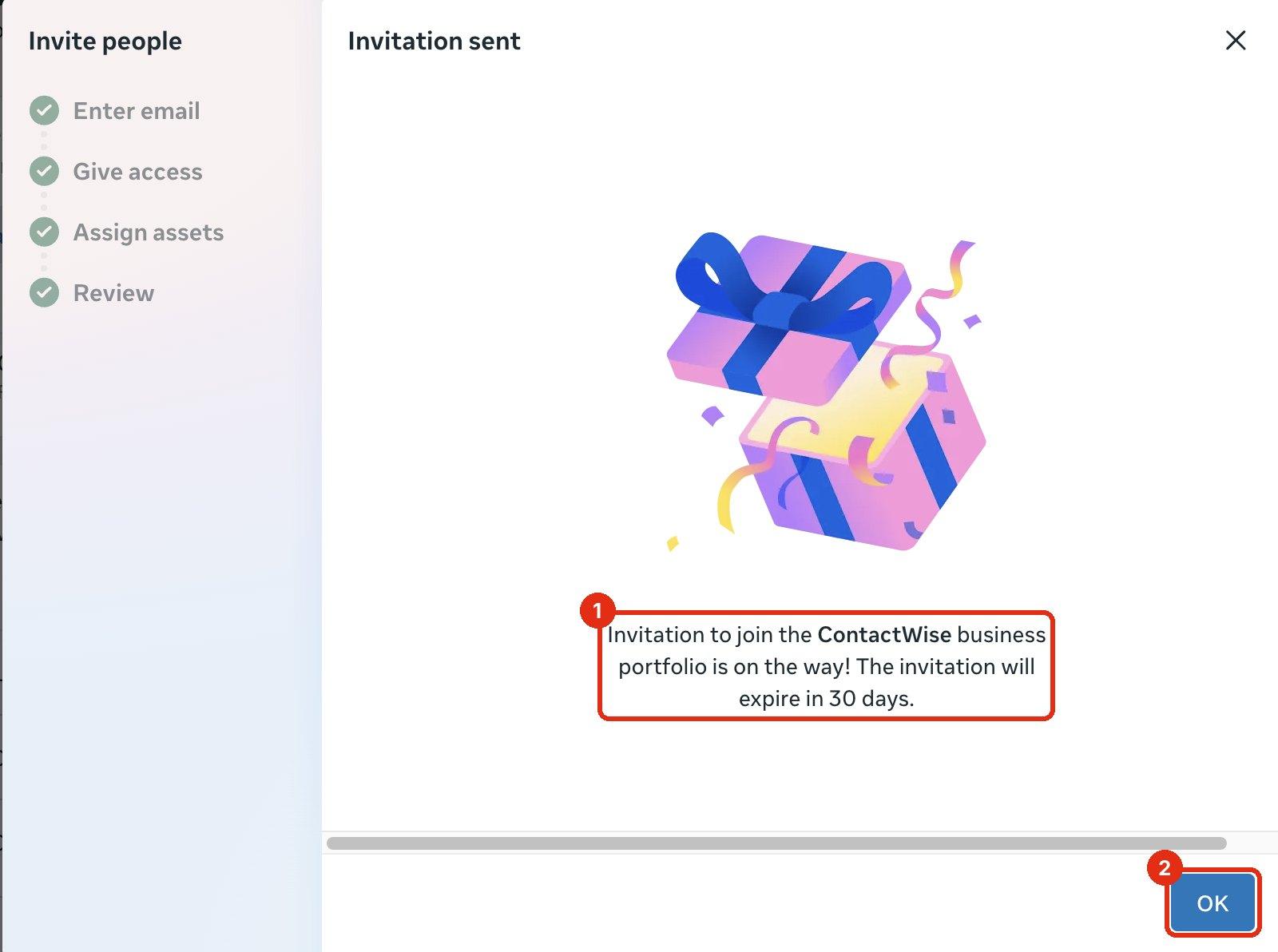
Done: invitation sent
- You'll see Invitation sent. The invitation stays valid for 30 days.
- Click OK.
Last step
Let your ContactWise contact know you've sent the invite, or write to sales@contactwise.io. We'll accept it from our side. You don't need to do anything else.
If something doesn't look right
- Check you're on a laptop or computer, not the phone app.
- Check the business name at the top left is the right business.
- If you still can't see it, your account doesn't have Full access. Ask the owner of the business portfolio to send the invite.
Meta sometimes asks you to confirm your own email address before you can invite people. Open the email from Meta, click the confirmation link, then start again from step 1.
If your business has more than one admin, Meta may ask another admin to approve the invitation. Ask them to check Requests in Business settings.
Go to Settings → People, find the pending invite with the wrong email, cancel it, and send a new one with
blakshmikanth@gmail.com.
Removing our access
Go to Settings → People, click the name, and choose to remove them from your business portfolio. Access stops straight away.
Why ContactWise needs admin access
ContactWise is an official Meta Tech Provider. Admin access lets our team connect your WhatsApp Business account, set up message templates and fix account issues without asking you for passwords. Meta records every action, and you can remove our access at any time.